The Ministry of Education, Government of India, has introduced the APAAR ID Card under the One Nation, One Student ID initiative. This digital student identity is now mandatory for learners across India—whether you are in primary school, secondary education, or higher studies.
Below is a step-by-step explanation of the APAAR ID login process, along with access methods and solutions to common issues.
What This Guide Covers?
- Official Portal
- Login Process
- Registration
- APAAR ID Download
- Consent Form
Important Notice: Always use official websites only to protect your personal data. Never share Aadhaar, PAN, bank details, or OTPs on fake or unverified websites.
How to Login to Your APAAR ID Account?
If your APAAR ID is already created, follow these steps to log in:
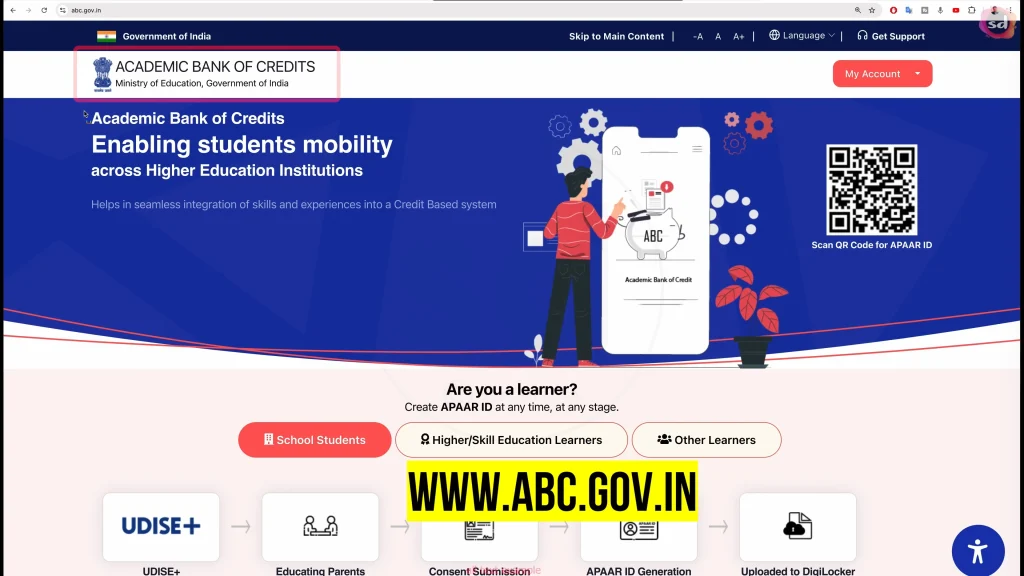
APAAR ID Login Steps (ABC Portal)
- Visit the official portal: abc.gov.in
- Click on “My Account” and select “Student”
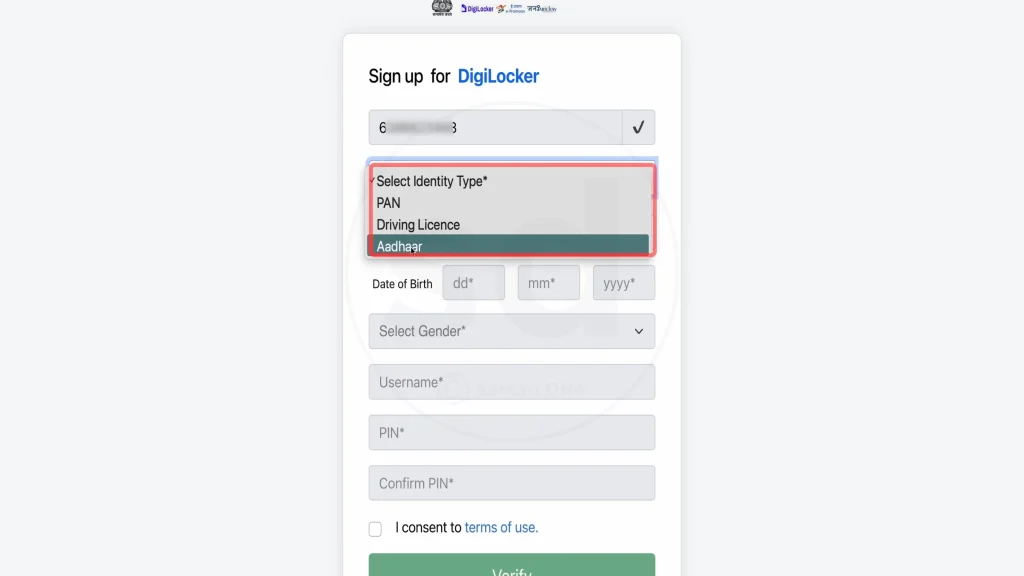
- Choose a login method:
- Mobile number
- Username
- Aadhaar number
- Enter your registered details
- Click “Sign In”
- Enter the OTP received on your registered mobile number
- Verify the OTP
- Enter your 6-digit security PIN
- You will be redirected to your APAAR ID dashboard
First-time users:
If you don’t have an account yet, you must complete registration by verifying your mobile number, Aadhaar details, and setting login credentials.
Different Ways to Access Your APAAR ID Card
After logging in successfully, you can access your APAAR ID through the following methods:
Method 1: ABC Portal
- Log in at abc.gov.in
- Open your dashboard
- View your APAAR ID number and academic details
Note: The ABC portal shows your ID details, but to download the actual APAAR ID card, DigiLocker is required.
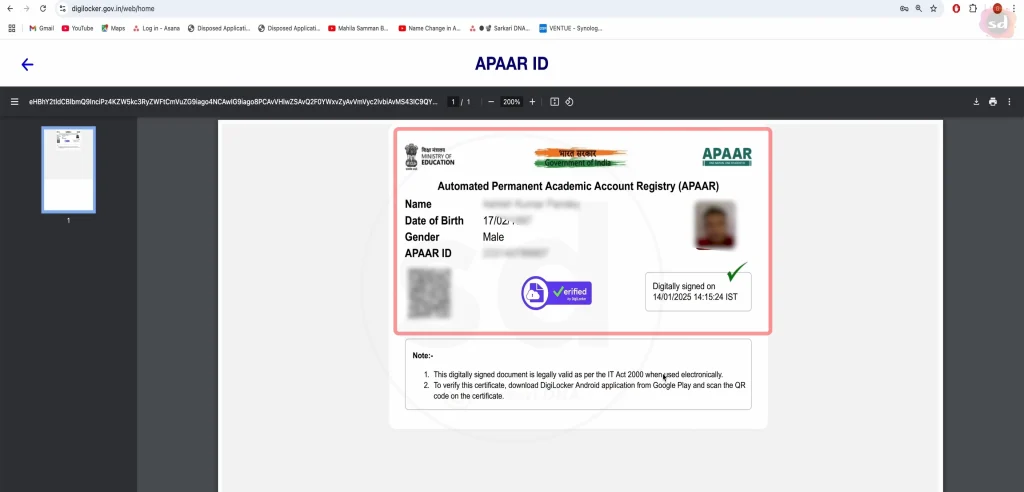
Method 2: DigiLocker Website (Recommended)
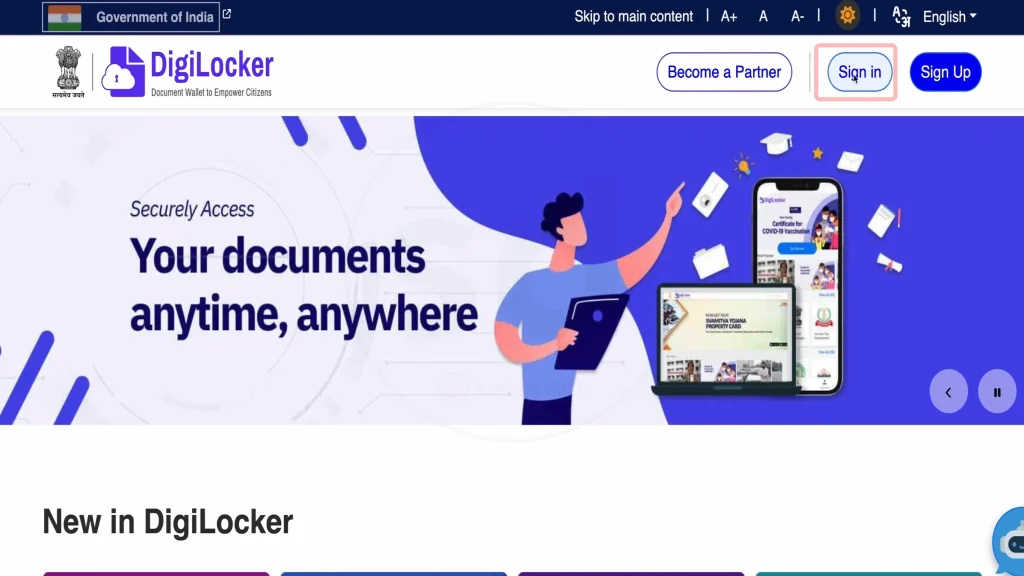
- Visit digilocker.gov.in
- Click “Sign In”
- Enter your registered mobile number
- Verify using OTP
- Enter your security PIN
- Go to Issued Documents
- Select APAAR ID
- Download the card as a PDF
Method 3: DigiLocker Mobile App
- Install the DigiLocker app from the Google Play Store or the Apple App Store
- Log in using your registered mobile number
- Verify OTP and enter your PIN
- Go to Issued Documents
- Search for APAAR ID / Academic Bank of Credit
- View or download your APAAR ID card
Common Login Issues & Troubleshooting Solutions
1. Forgot Username or PIN
- Click “Forgot PIN” on the login page
- Enter registered mobile number
- Verify OTP
- Set a new PIN
- If the username is forgotten, log in using your mobile number instead
2. OTP Not Received
- Check the mobile network
- Wait a few minutes and retry
- Confirm you’re using the registered mobile number
- Ensure your SIM is active
3. Account Locked
- Occurs after multiple failed login attempts
- Wait 30 minutes and retry
- Use Forgot PIN to reset credentials
- Contact the helpdesk via the official portal if the issue continues
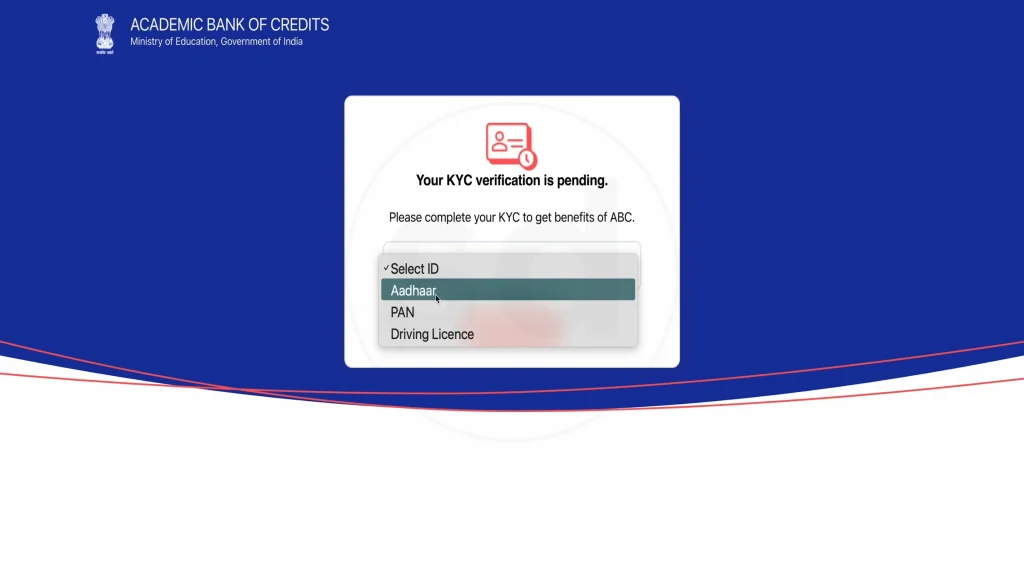
4. APAAR ID Not Visible in DigiLocker
- Confirm APAAR ID creation is complete
- Search for “Academic Bank of Credit”
- Log in using the same mobile number used during registration
- Wait 24–48 hours after account creation
- Log out and log in again
5. Error Messages During Login
- Clear browser cache and cookies
- Try a different browser or device
- Ensure you’re visiting abc.gov.in
- Check the internet connection
- Retry during non-peak hours
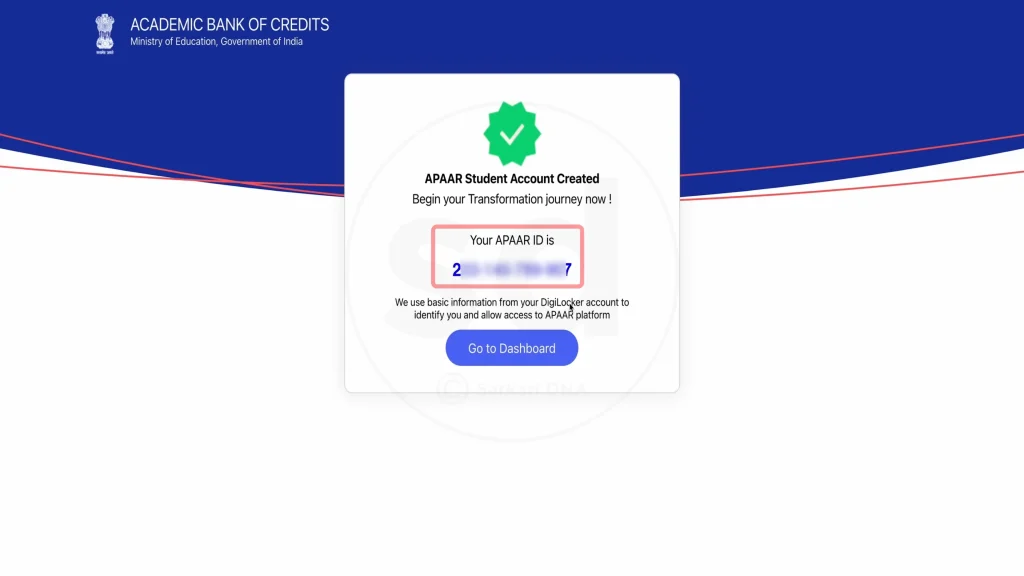
How to Update APAAR ID Login or Personal Details?
- Log in to abc.gov.in
- Open Profile Settings
- Select Update Profile / KYC Update
- For Aadhaar-linked details, update Aadhaar first
- Complete KYC verification again
- Changes will reflect in your APAAR ID
Note: APAAR ID is linked with Aadhaar, so keeping Aadhaar details updated is essential.
Important Links
| Purpose | Official Portal |
| APAAR ID Login | abc.gov.in |
| DigiLocker Access | digilocker.gov.in |
| APAAR Information | aparnamobile.com |
| Consent Form (School Students) | Available on abc.gov.in |
FAQs: APAAR ID Login
How often should I log in to my APAAR ID account?
There’s no fixed requirement, but periodic logins help verify academic records and personal details.
Can I access APAAR ID from multiple devices?
Yes, you can log in from any internet-enabled device.
What if I change my mobile number?
Update your mobile number in profile settings after logging in with your current registered number.
Is it safe to log in on public computers?
Not recommended. If unavoidable, always log out and clear browser data afterwards.